How to dictate real text into WhatsApp Web and Telegram Desktop
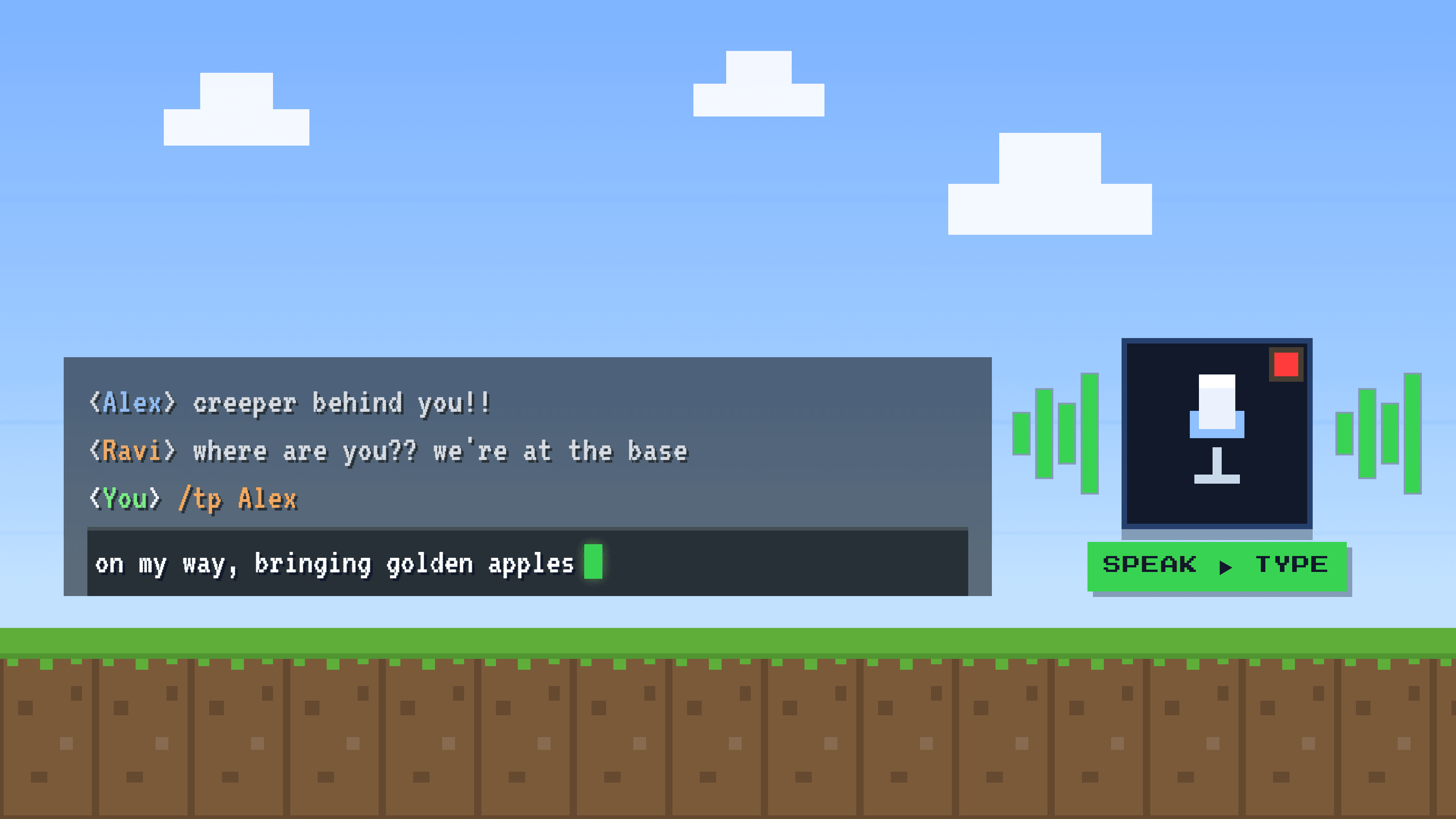
The mic button in WhatsApp and Telegram records a voice clip, it does not type your words. Here is how to actually dictate readable text into the message box on desktop, for free and beyond.

Image: Icons8
WhatsApp and Telegram happily hand you a megaphone. Tap the little microphone next to the message box and you can blast your voice across the room, across the city, across the world. It is loud, it is instant, and it is sitting right there begging to be pressed. What both apps quietly forget to hand you is a pen. The second the person on the other end needs readable text instead of a wall of audio, you go looking for the thing that turns your talking into typing, and it is simply not in the app.
This matters more than it sounds, and it matters most in Latin America, where WhatsApp is not one app among many but the default way people talk to family, coworkers, clients, and the guy who fixes the water heater. You type in it all day long. Yet on a laptop there is no button that turns your voice into a clean written message. This guide is about finding the pen: how to dictate actual text into WhatsApp Web and Telegram Desktop, what the free tools built into your computer really do, and exactly where each one falls short.
The microphone you see is a recorder, not a keyboard
Here is the thing nobody says out loud: the microphone icon next to the WhatsApp compose box does not do dictation. It records a voice clip, an audio message the other person has to stop and play back. It is a megaphone, not a pen. WhatsApp Web is basically a website with a text field, and it expects your operating system, your browser, or a third-party tool to handle the job of turning speech into keystrokes. The WhatsApp desktop app behaves exactly the same way.
Telegram Desktop is no different. Its in-app mic records a voice message, full stop. There is no built-in voice typing for composing a message. It is worth being blunt about this because it trips everyone up.
But wait, you might say, Telegram can transcribe voice messages. True, and this is the single most common point of confusion. Telegram's speech-to-text (the small transcribe icon) works only on voice messages you have already received, turning someone else's audio into readable text under the bubble. See Telegram's own transcription documentation. It never types into your outgoing message box, and for free accounts it is capped at a small weekly limit, with unlimited transcription reserved for Telegram Premium. Transcribing a message you got is the opposite of dictating a message you are sending.
Text, not a voice note
This whole guide is about sending readable text, which is a different thing from sending a voice note. If you were about to fire off a four-minute audio, consider why the reader might not thank you for it in nobody wants your 4-minute voice note, then dictate a clean message instead.
On your phone, the mic key belongs to the keyboard
On your phone you probably have dictated a WhatsApp message and it worked fine, so this all sounds wrong. Look closer. When you tap the little microphone on your phone's keyboard, that button is not part of WhatsApp or Telegram. It belongs to the keyboard: Gboard on Android or the Apple keyboard on iOS. See Google's guide to the Gboard voice typing key. WhatsApp and Telegram just quietly receive the text the keyboard produces.
That single fact explains the whole mystery. On desktop there is no on-screen keyboard, so there is no keyboard mic, so the convenient button you rely on simply vanishes. The apps never had dictation of their own. They were borrowing it from the phone keyboard the whole time.
The real desktop fix: your operating system's own dictation
So on a laptop you fall back to the dictation built into the operating system itself. It is free, it already lives on your machine, and it types into any focused text field, including the WhatsApp Web or Telegram compose box. Here is the real how-to.
On Windows: click the message box, then press Win + H
Open WhatsApp Web or Telegram in your browser or the desktop app, click into the message field so the cursor is blinking there, and press the Windows key plus H. A small voice-typing toolbar appears and your speech starts landing in the box. Full instructions are in Microsoft's guide to Windows Voice Typing.
On Mac: turn on Apple Dictation, then focus the box
Enable Dictation once in System Settings, then click into the Telegram or WhatsApp message field and press the dictation key (or choose Edit, then Start Dictation) and speak. Apple explains setup in its Dictation guide.
On your phone: use the keyboard mic
If you are on a phone anyway, tap into the chat, then tap the microphone on the Gboard or Apple keyboard, not the round mic inside WhatsApp. The keyboard one types text; the app one records audio.
Win + H is not offline
Standard Windows 11 Voice Typing sends your audio to Microsoft's cloud, so it needs an internet connection. Only newer Copilot+ PCs run dictation on the device. Do not assume Win + H is private or works on a plane for everyone.
The honest limits of free OS dictation
Win + H and Apple Dictation are genuinely useful and cost nothing, and for a quick message they are often all you need. But be clear-eyed about where they get frustrating, especially for the kind of fast, mixed, name-heavy chatting people do on WhatsApp.
- You have to narrate the punctuation out loud, saying "comma" and "period" and "new line", which feels robotic after a few sentences.
- They work one language at a time. If you flip between Spanish and English mid-message the way most bilingual people actually text, the recognition falls apart.
- They mangle proper nouns. Names, brands, neighborhoods, and slang come out wrong, and there is no way to teach them.
- They can drop out when focus shifts. Click away or open a new window and dictation often stops, leaving you re-enabling it.
If you want cleaner text: a fair roundup
If the free OS dictation is enough for you, stop here, you are done. But if you dictate all day and the punctuation narration and mangled names wear you out, a class of system-wide dictation tools exists that sits above every app and types cleaned-up text at your cursor. They are not WhatsApp or Telegram plugins, and none of them work "inside" the app. They are external tools that type into whatever field is focused, the message box included, exactly like Win + H does, only cleaner.
Golem is one tool built this way. It captures at the operating-system level on Windows and Mac, runs OpenAI's Whisper (large-v3-turbo) plus an LLM cleanup pass so the text arrives already punctuated, and lets you add custom vocabulary so names and brands stop getting mangled. It is multilingual, so you can speak Spanish and have it type English, which is handy for a bilingual inbox. It is free to start with no credit card, and Pro is $3 a month or $30 a year. The honest trade-offs: it is Windows and Mac only (no Linux, no phone keyboards), it needs a login, and for the cleanest results it needs internet, because transcription runs server-side rather than fully on your device.
Golem is not your only option, and it is worth naming the others plainly. Wispr Flow is a polished paid option at roughly $15 a month, available on Mac, Windows, iPhone, and Android, and it is the strongest paid pick if price is no object. Superwhisper is a strong Whisper-based choice, Mac-first but now on Windows and iOS, and it can run fully on-device, which is the one to look at if offline privacy is your priority. Dragon from Nuance is the legacy heavyweight at about $14.99 a month or a pricey perpetual license, powerful but overkill for chat.
| Win + H / Apple Dictation | System-level tool (e.g. Golem) | |
|---|---|---|
| Cost | Free, built in | Free to start, paid tiers |
| Punctuation | You narrate it out loud | Added automatically |
| Names and brands | Often mangled, cannot teach | Custom vocabulary you train |
| Mixed languages | One at a time | Speak one, output another |
| Types into the chat box | Yes | Yes |
| Works offline | Win + H no, Mac partly | No, transcription is server-side |
The bigger picture
Dictating into a chat box is one instance of a much larger idea: voice typing that follows your cursor into every app instead of living inside one. For the full map, read voice typing that works in any app, and if the real goal is to stop sending audio, see nobody wants your 4-minute voice note.
Frequently asked questions
Can I dictate directly inside WhatsApp Web?
Not with a built-in feature, because none exists. The mic button records a voice clip. To type text into the box, use Win + H on Windows, Apple Dictation on Mac, or a system-wide dictation tool.
Does the WhatsApp microphone convert my voice to text?
No. It records an audio voice message that the recipient has to play back. Speech-to-text has to come from your operating system or a third-party tool, not from WhatsApp.
Telegram can transcribe voice messages, so can it dictate mine?
That is a different feature. Telegram's transcription (unlimited on Premium, a small weekly limit for free) turns voice messages you receive into readable text. It never types into your own compose box.
Is Win + H free, and does it need internet?
It is free and built into Windows 11. Standard Voice Typing sends your audio to Microsoft's cloud, so it needs an internet connection. Only Copilot+ PCs run it on the device.
How do I dictate on a Mac into WhatsApp or Telegram?
Turn on Apple Dictation in System Settings, click into the message box so the cursor is there, press the dictation key or choose Edit then Start Dictation, and speak.
What if I mix Spanish and English in one message?
Built-in OS dictation handles one language at a time and struggles with mixing. Some paid Whisper-based tools handle mixed input or even let you speak one language and output another.